I’m running Ableton 11 Suite v3.1.43 latest install on Windows 10 Pro/32GB RAM and the latest install of VideoSync 2.1.7.
I have installed the VIDDLL M4L package, as per the support article, and installed it on windows (Program Files/Cycling ‘74) but, after several hours of trying the VideoSimpler is still without previews.
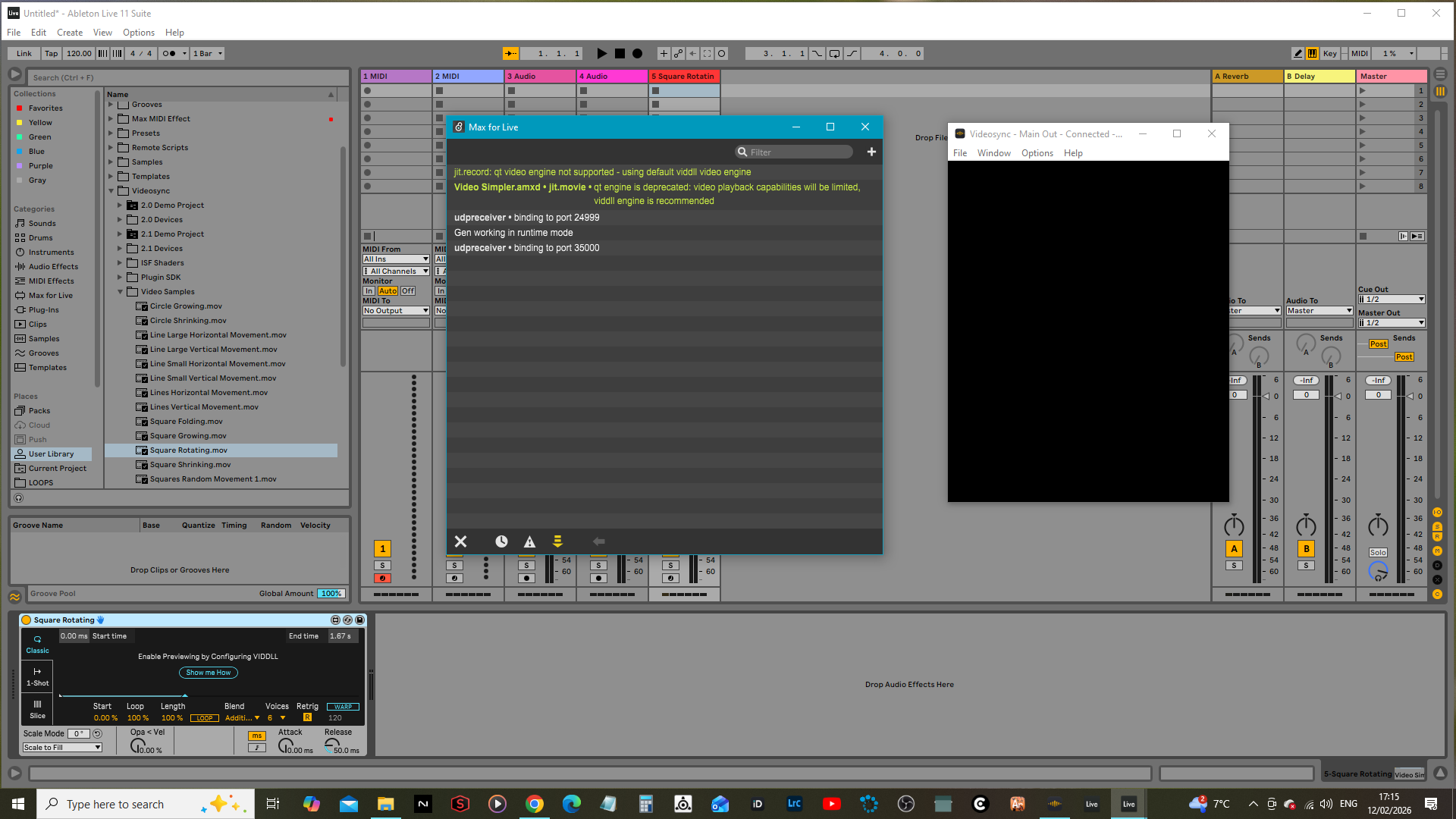
I’m not an expert, and certainly new to video creation but I’ve tried both configurations of the Ableton ‘installed package’ and, of the Cycling ‘74 external install. In my computer Graphics system settings I have customised both Ableton & M4L for ‘high performance’ and allowed access through Windows Security (just in case ). Here is the current M4L window in Ableton:
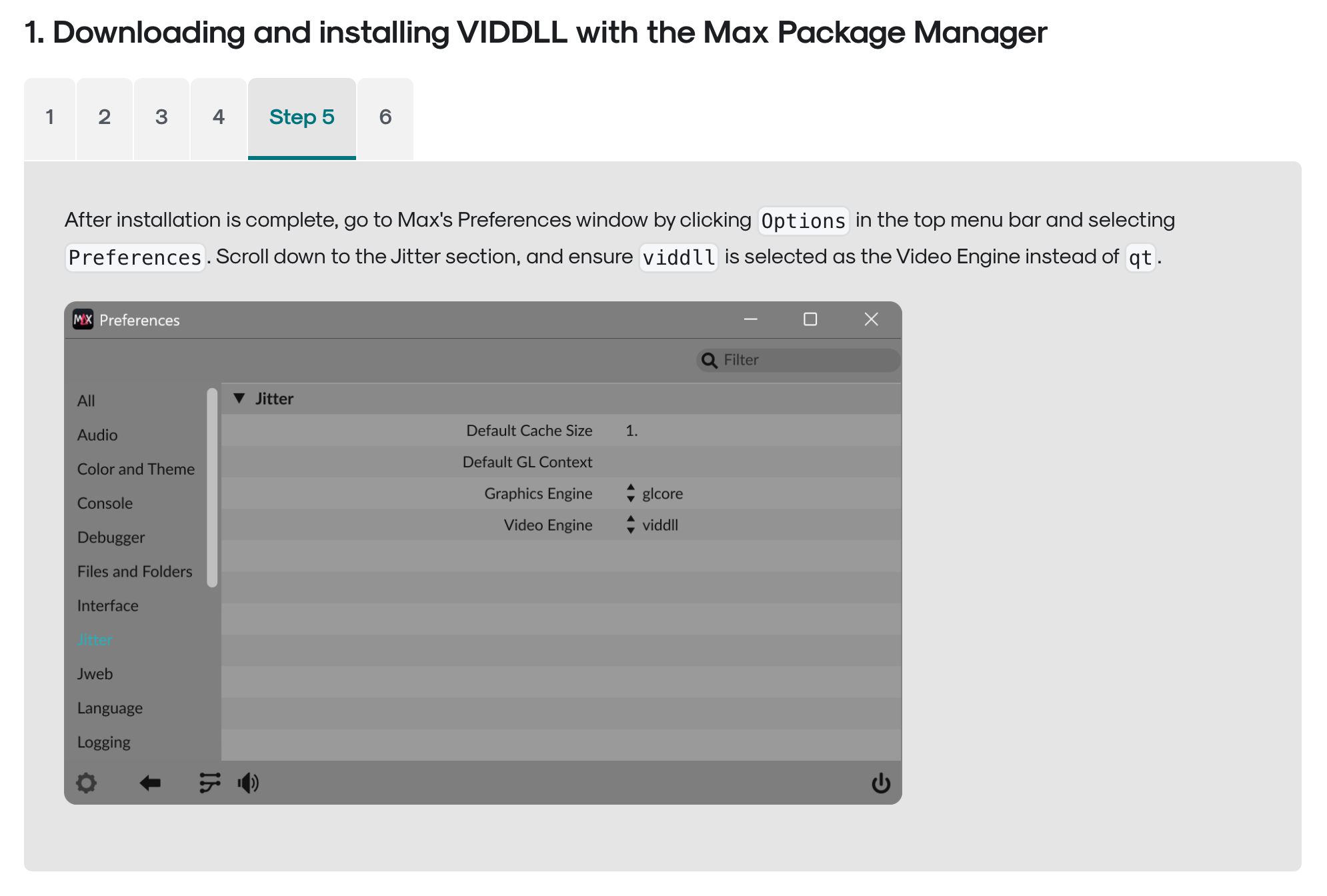
Judging by the Max for Live console window in your screenshots, it seems that in Max the qt engine is still selected as its video engine, instead of viddll. This is described at step 5 of the first guide on this page:
And just for the record, I updated the article just a moment ago. There appeared to be some text at the bottom of step 5 of solution 1 that did not belong there. Sorry if this caused any confusion!
So switching from ‘bundled version’ to browsing to the M4L install I get this window which shows a problem. The Simpler reflects an error(s)? I notice that, when navigating to the M4L folder in my Program Files/Cycling ‘74 from Ableton’s Preferences/File Folder Browse button - I can only select the Max9 folder and not the M4L.exe file. This is my end result in Ableton when I make the switch:
Is there a specific reason why you want to use a separate installation of Max (solution 2)? For solution 1 this isn’t required, and you can simply use the bundled version of Max.
Yes, I would recommend uninstalling the Max standalone, and to go through the steps listed under Solution 1. My guess is that for the bundled version of Max the video engine was still set to qt instead of viddll.
Just to be sure, I recommend using version 1.2.9 or newer of the VIDDLL package.
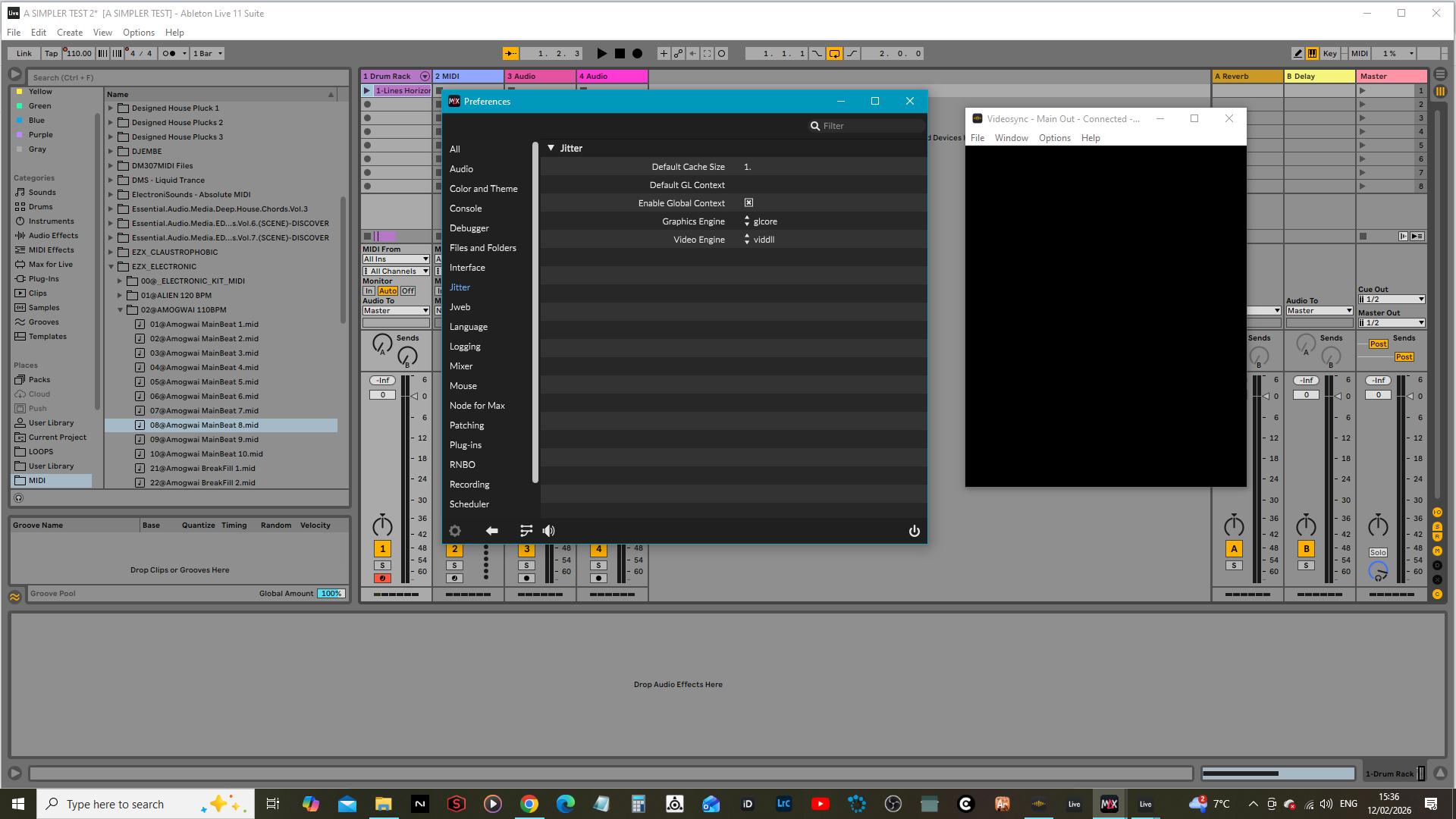
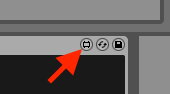
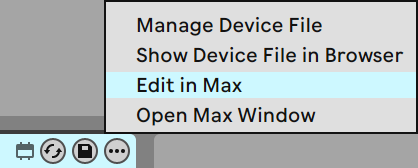
Yeah, like I mentioned in my first post, I had 1.30 installed using the standalone. I’ve taken that off now and it’s not working. I’m not able to access the ‘Edit In Max’ window. My only option here, when I right click the context header of the Video Simpler is: ‘Open Max Window’. I do that and I get this window here:
There is nothing else I can access. I try the key combo of Ctrl+Shift+K and nothing happens. When Max9 was installed at least I could open the windows to alter the QT/VIDDLL settings in the Jittersection. I don’t fully understand why the configuration, as explained in your article, isn’t even working? Mmm….
OK, things are working correctly now! Just a few points to make for any future interest:
Ableton 11 ver3.1.43 only supports(according to my install) DIVDLL up to 1.2.8 which is Max8 and ships as part of the ‘Live’ Bundle. DIVDLL does, however, show version 1.2.9 in the M4L Package Manager but is labelled as: ‘Incompatible’. Finally, there is no Key Combination to open the M4L Package Manager in version 1.2.8. Ctrl+Shift+K doesn’t do anything. You have to go to: File/Show Package Manager in the available Max8 window.
Hope this info becomes useful for someone further down the line.
 ). Here is the current M4L window in Ableton: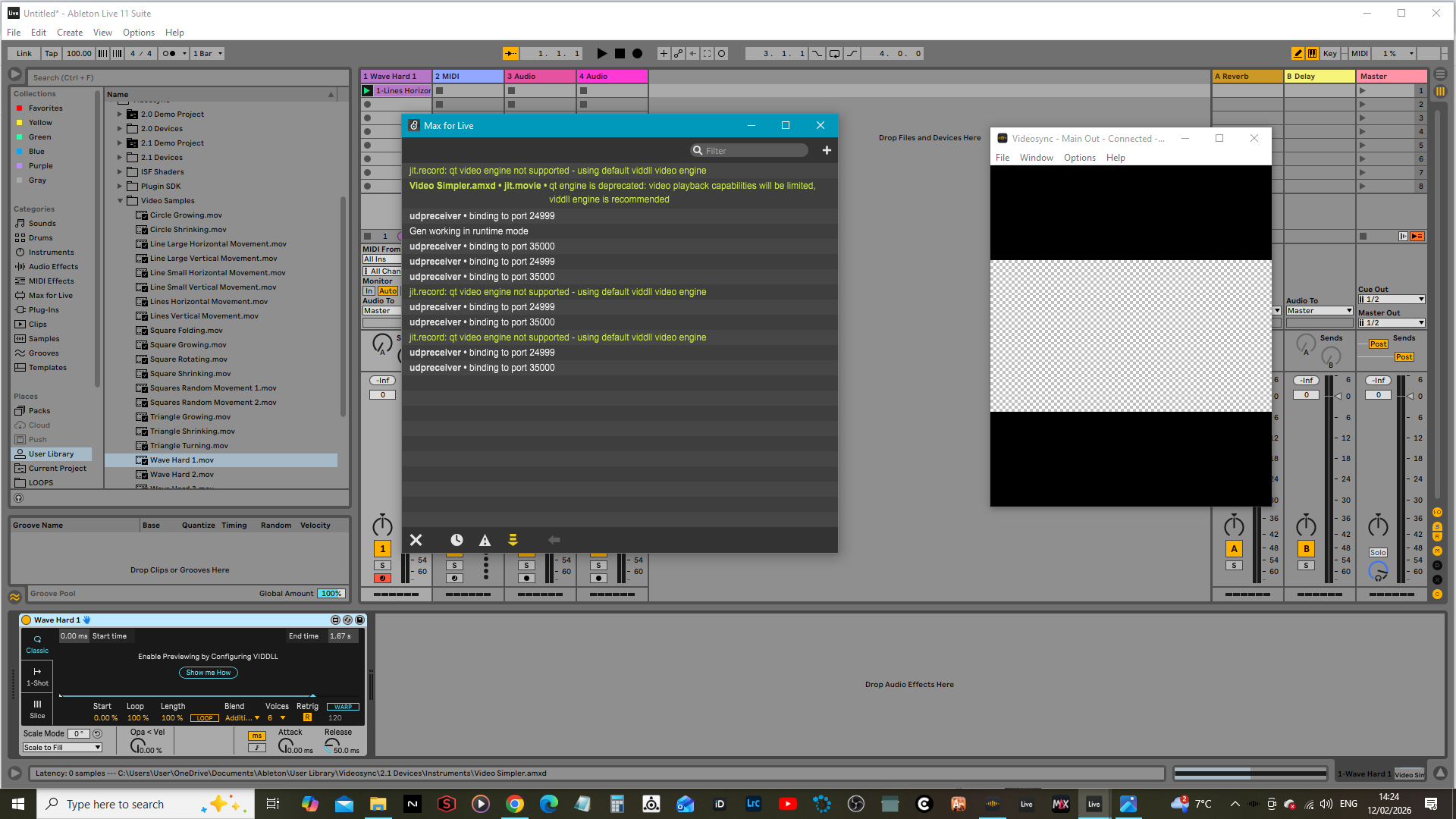
 .
.
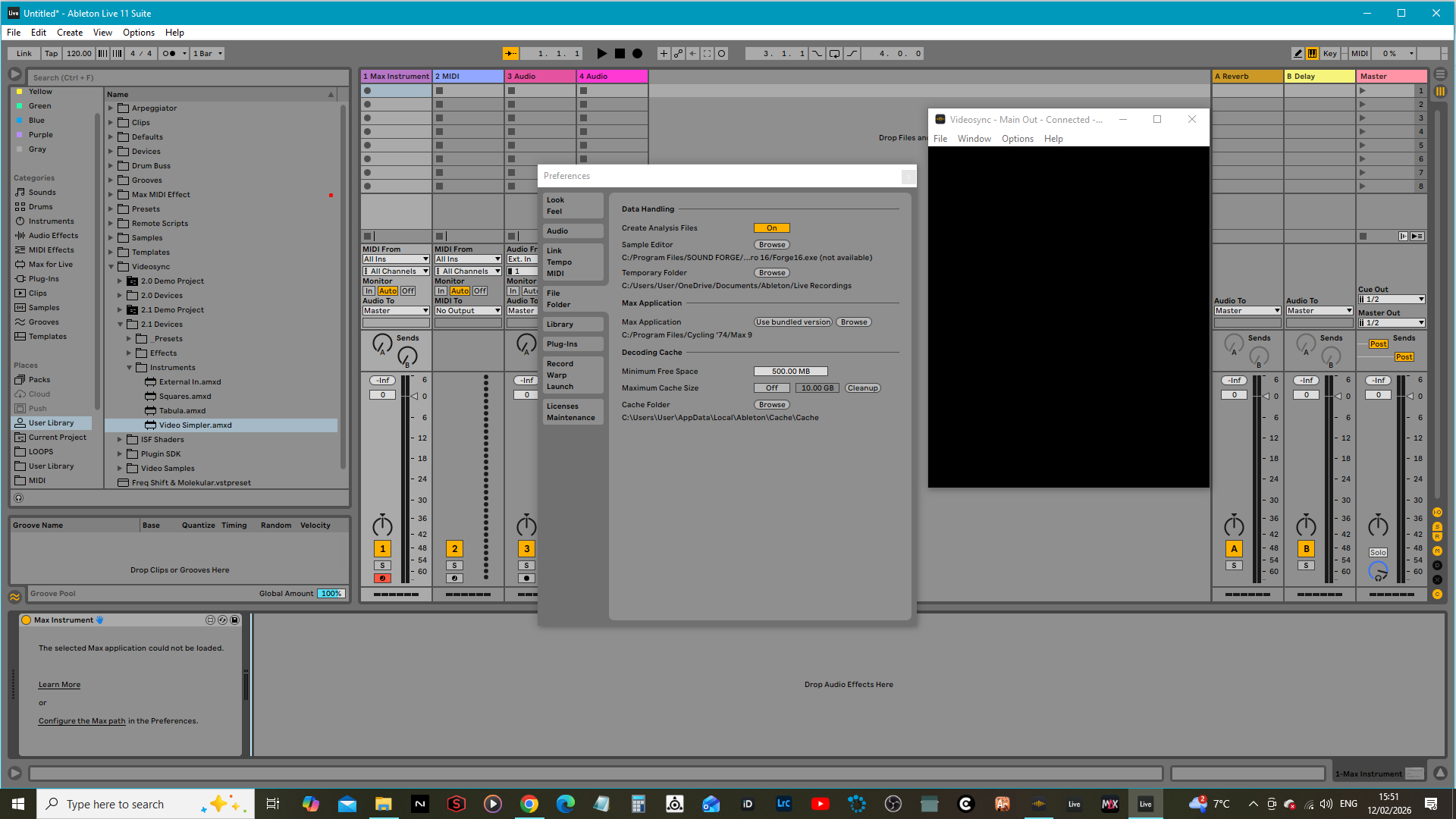


 Just a few points to make for any future interest: