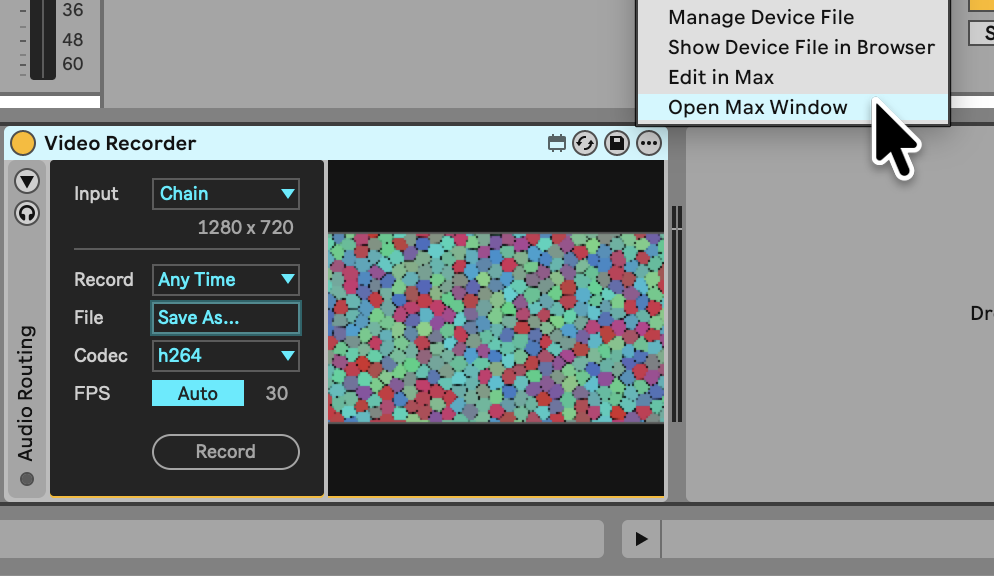
Just updated to 2.1 to try out the video recorder. It seems to work fine when recording and saving files, but opening the .mov file shows that only audio is recorded. I’ve tried in Windows media player as well as VLC.
I’ve tried the recorder on the main track as well an individual track to no success.
Not sure if this is a bug or if I’m doing something wrong.
We’re currently aware of an issue with Video Recorder, where the recording of the video freezes when the device is out of view (like when selecting/viewing another track in Live’s user interface). If you keep the Video Recorder track selected while it’s recording, does it still not record any video?
Correct, I just tested recording a video with the main track containing the video recorder visible, and there is still only audio upon playback. The recording is smooth with no jumps or freezing, but still no video in the .mov file.
This may or may not be related, but when I pulled one of those recordings back into Ableton to check if I could see video within videosync, videosync crashed.
We caught the crash report on our end, and it seems to have to do with the recorded file not containing data Videosync would expect.
Could you please let me know if you can see the video stream in the Video Recorder device, before/during/after the recording? Or that the Video Monitor device shows the same video stream?
No, I haven’t been able to see the video within the recorder or monitor at any point. I reinstalled max and viddll after noticing this, but all I see is a black screen in the window.
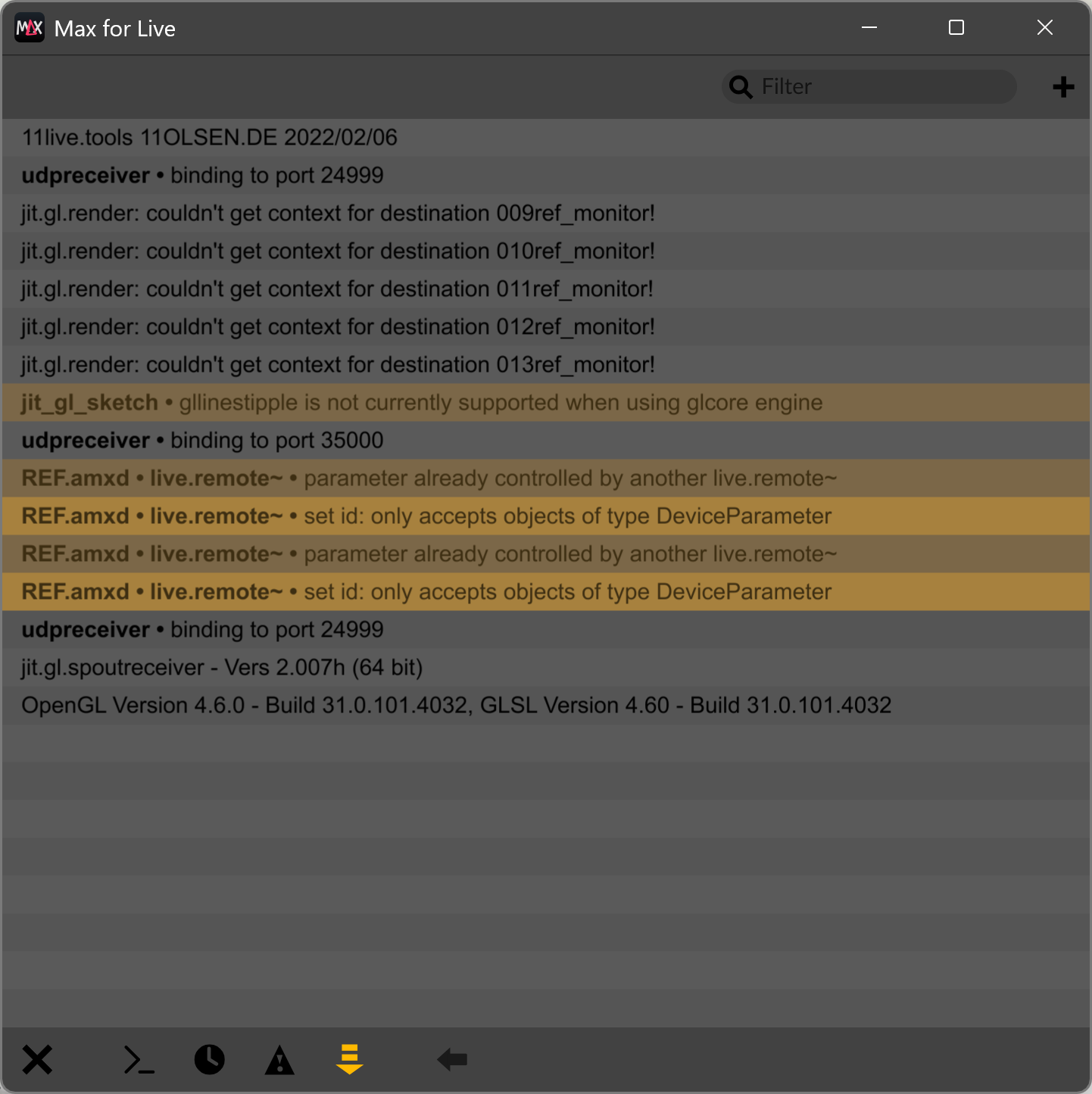
Okay, that’s good to know. Could you share a screenshot of the Max console, which you can access by clicking “Open Max Window” from the device’s context menu?
SOLUTION: Make sure Live/Max and Videosync are all running on the same GPU
We realized that I was running Live with my Intel GPU whereas Videosync was using my Nvidia card.
Live → Preferences → Display & Input → Enable GPU Renderer (Might not be necessary but can only help with all around performance, I would guess)
Windows 11 Settings → System → Display → Graphics → Custom Settings for Applications → Add Live (and Max if using standalone) and Videosync to the list if not there already and manually select GPU preference, ensuring they are running on the same GPU.
You can also check to see what GPU each application is using within task manager. In the Processes tab, right-click in the status bar to add “GPU Engine.” This number will correspond to one of your graphics cards. To know which is which, go to the Performance tab, where each engine is labeled with the corresponding GPU.
Thanks again for your time on the call — it really helped us understand the issue clearly. And thanks as well for sharing the solution here.
For any future reader, we’ve included this problem (described as Scenario 1) and the fix for it on this page under the Troubleshooting section of the Videosync manual.