Hi, I’m new here! I am working on visuals for my live set with footage that has different aspect ratios. Right now when I output 1920x1080 there’s a black frame around my videos. I’m not sure what it will look like when it’ll be projected out of a projector, but I’d like to make the black transparent. Is there a way to do that / check whether it actually is transparent? I know there’s the properties device where you can select alpha, but I’m not sure if it’s working. I’m also at times using several layers of footage so am not sure which layer to use that on. Appreciate your help, thanks!
Hey Dionne, welcome to our forum!
To see what is transparent in your composition, you can enable “Checkerboard Background” on the Video tab of Videosync’s Settings window:
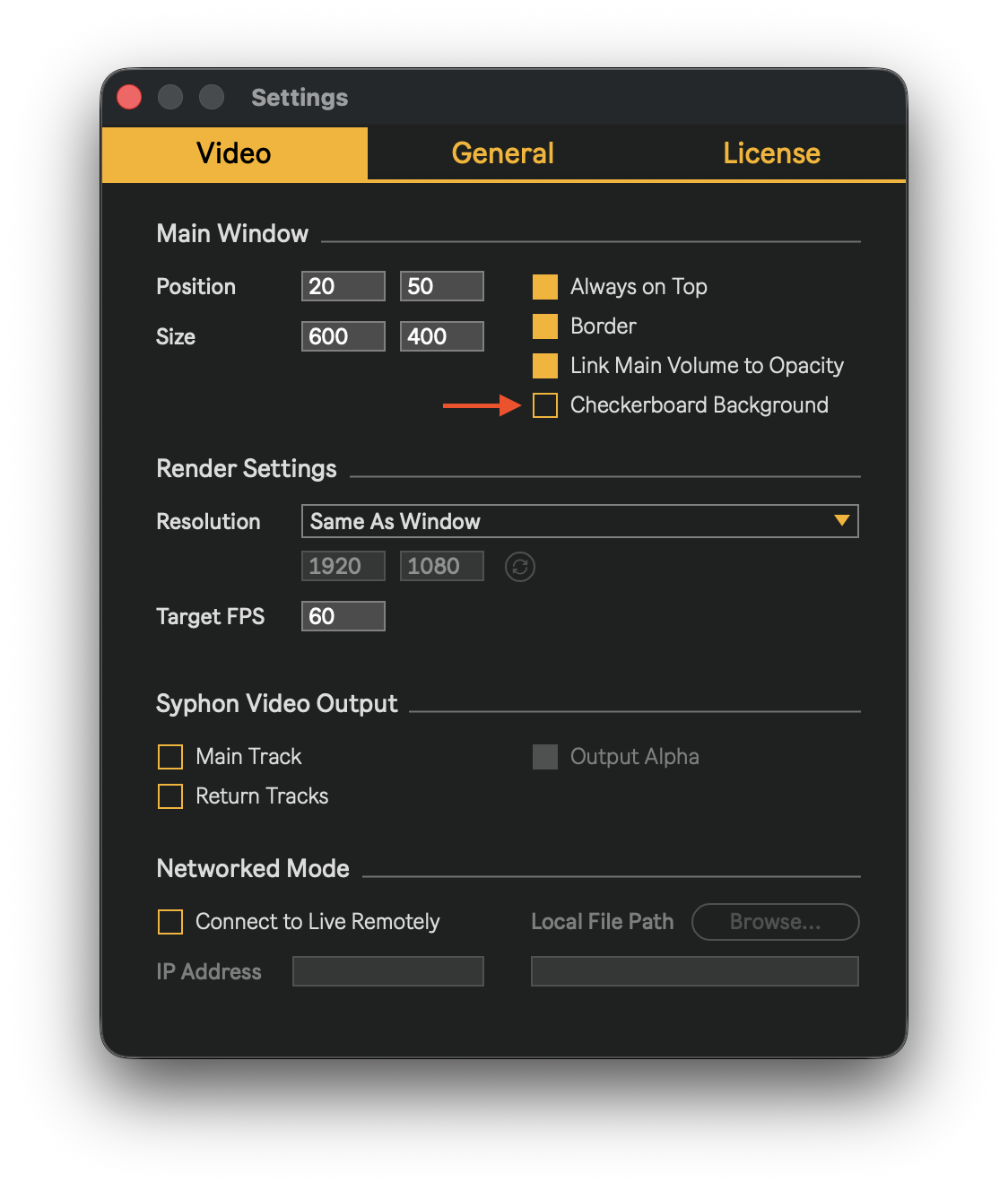
On that same tab, you can also set the Resolution to match that of the projector. If you still see black bars at the top/bottom of the window, then this means the window size does not match the chosen resolution/aspect ratio.
When setting the Blend Mode to Alpha using the Properties device, the parent track’s index number defines its place in the layer stack. This means that track 2 will always be on top of track 1. This means that in Arrangement View, because the track at the top of the screen is always track 1, the lowest track is the top layer (if the blend mode for that track is set to Alpha, that is).
With the Properties device you can also decide how a video on an Audio Track fills the screen, by choosing the desired setting of the “Scale Mode” menu.
If you want to turn black pixels in a video clip into transparent ones, then you can use the Keyer or Color Swap devices. With Keyer for example, simply set the color to black, and set a desired Tolerance and Softness.
With a tool like VSDC Free Video Converter you can change the aspect and re-scale video.
The same with Adobe Media Encoder, if you have Adobe products.
Thank you both! This solved my problem 