Hey everyone,
I’m totally new to Beam and Astera. Does anyone have a fixture profile for the Astera Helios Tube (FP2)? Couldn’t find it in Beam‘s list.
Edit: I’m looking for the profile to choose in the list. Not the Fixture Profile…
Best - Thomas
Hey everyone,
I’m totally new to Beam and Astera. Does anyone have a fixture profile for the Astera Helios Tube (FP2)? Couldn’t find it in Beam‘s list.
Edit: I’m looking for the profile to choose in the list. Not the Fixture Profile…
Best - Thomas
Hi Thomas,
I see in the e-mails you’ve exchanged with my colleague that you’ve already managed to make the fixture profile yourself. I just checked & tested it and can confirm it is all done correctly and works as expected! You’ve had some additional questions that I’d like to answer here, in case anyone else might find it helpful.
For reference, here is the profile, currently including just the 43: RGBW RGBW (PIXEL = 8; STROBE = OFF) mode: Astera FP2 Helios Tube.sbf
DMX chart: https://astera-led.com/wp-content/uploads/FP2_FP2-BTB_Helios_Tube_DMX_Profiles_V2.pdf
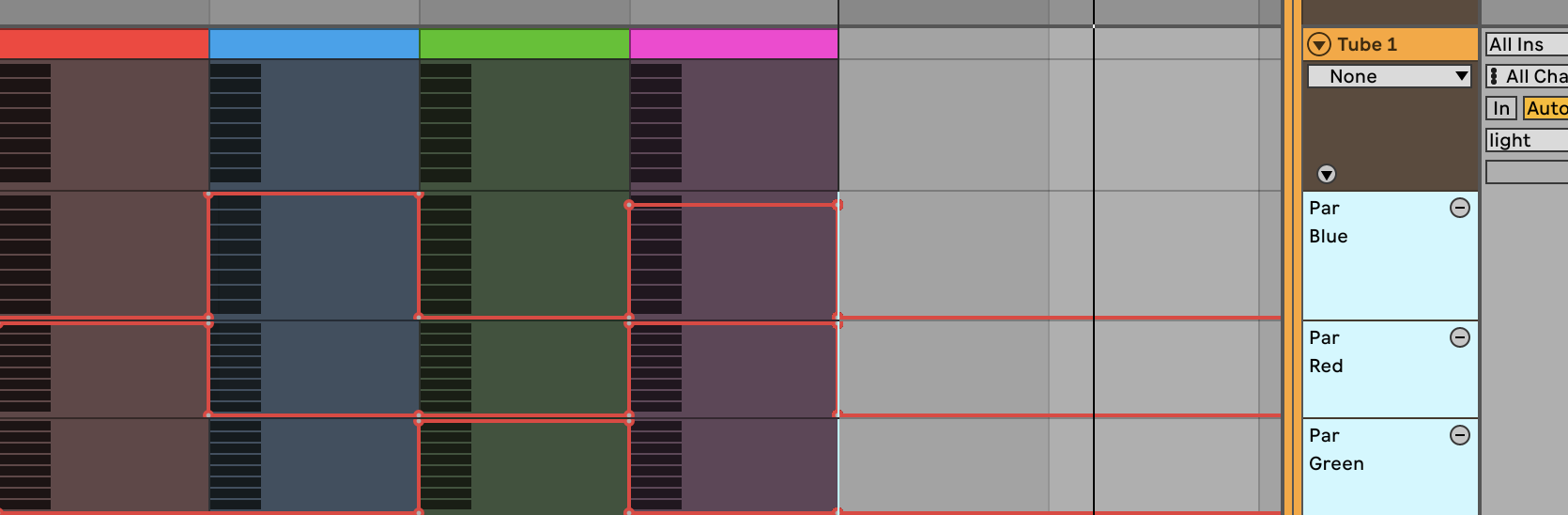
How to change the color? This is the way I’m trying to change colors at this point. Which works but is pretty uncomfortable.
Beam for Live devices allow you to control the color of any fixture with dedicated color-mixing channels using either RGB or HSL color models. Beam automatically translates parameter values to the appropriate DMX values of fixture’s color channels.
While it is possible to achieve the same colors using both color models, I’d recommend primarily using HSL (Hue/Saturation/Lightness), as it:
Hue refers to the type of color, represented as a position on the color wheel. In Beam for Live devices, this is expressed as a value between 0.0 and 1.0, where:
Saturation defines purity of the color, also in the range 0.0 and 1.0, where 1.0 produces the most vivid and pure version of the selected hue.
Lightness controls the brightness of the color, from 0.0 (blackout) through 0.5 (true color) to 1.0 (white).
Here is a video that demonstrates working with HSL:
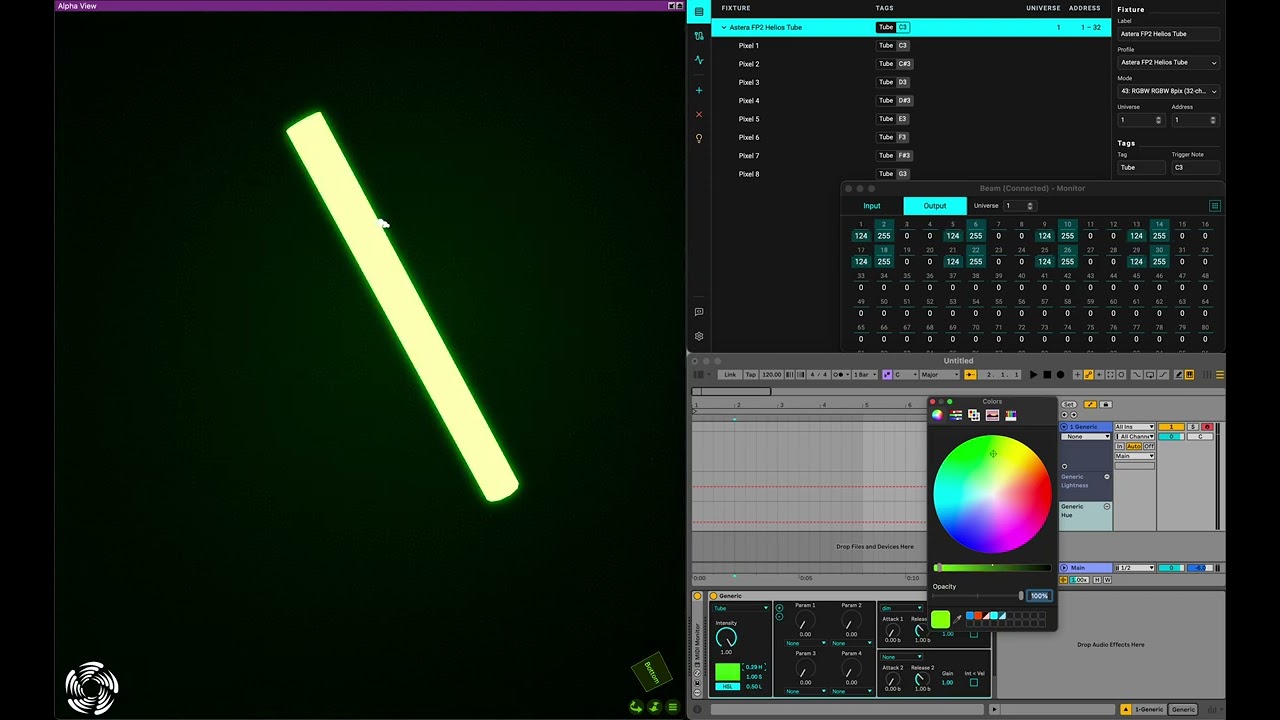
I thought the “Hue” parameter is doing all the for me but unfortunately it is not showing any effect on my lights (don’t know why).
Please double-check that the fixture is set to the correct channel mode (43) and address. If you still cannot make it work, please record a video where you show how you are controlling the fixture (showing Live, Beam Fixture Patch and Monitor, as well as your fixture) and attach your fixture patch (.sbp) and Live Set (.als).
If you have access to all the 8 pixels is it then also easyly possible to control the all together at once?
If all the 8 pixels have the same tag assigned to them, the Intensity and color controls on Beam devices are by default already controlling all the 8 pixels at once, whereas MIDI notes trigger envelopes for the fixtures with corresponding notes assigned to them. When you assign a tag to the fixture base, it will automatically be assigned to all the pixels/cells, with MIDI notes starting from C3 (60) for cell 1 and chromatically ascending with each subsequent cell. If you want to trigger all pixels at once with a single MIDI note, you could assign an additional tag and set all the note values to the same note in the Fixture Patch. Alternatively you could use Ableton Live’s Chord device to trigger multiple MIDI notes with a single note.
Hope this helps - let us know if you have any other questions!