Hey @thedundiesva, in our e-mail correspondence you reported:
I’m having trouble getting the “Shehds” spots to put out any light. I have control of the panning and tilt so something’s working but I can’t seem to control the light output.
As figuring out channels of an unknown fixture is a challenge that more people might come across at some point, I thought I’d reply here.
Being able to control pan and tilt is a good start and means there is a chance your fixture uses the same DMX channel configuration as the one I linked in my previous post, but it could also be that they are only matching partially.

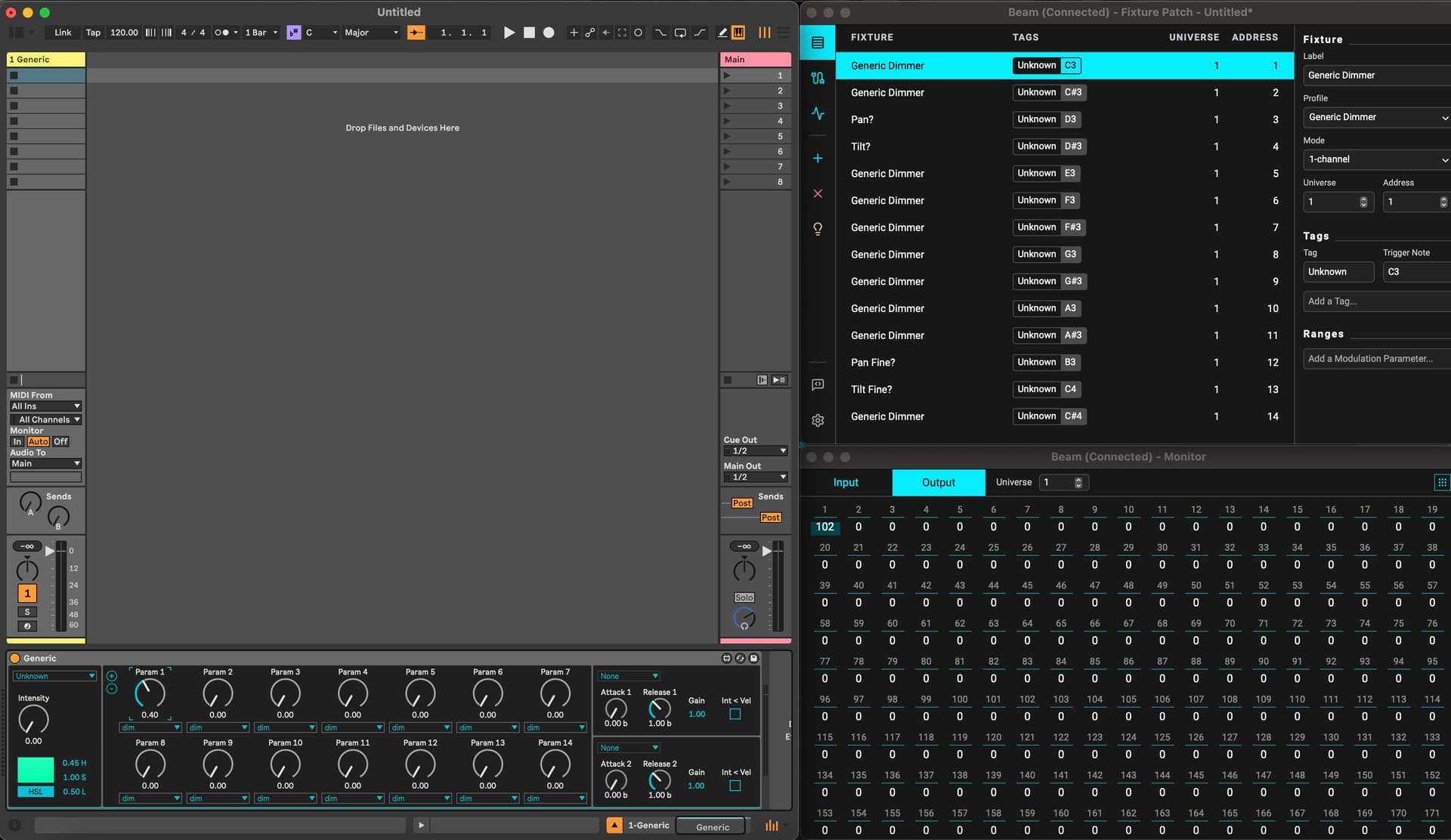
Let’s try to find out what each channel does by activating each of the 14 channels and see what happens:
-
Start by opening Beam’s Monitor in an external window (Window > External Monitor).
-
In the Fixture Patch, add 14 Generic Dimmer fixtures. These are 1-channel fixtures that only control intensity, so every fixture will represent one channel of your fixture.
-
Set a fixture/channel to 255 by selecting it and pressing “Test”. Do this for one channel individually at a time and see if any of them make the light output change:
- if yes you’ve found the Dimmer channel
- if not, it means the Shutter/Strobe channel (and possibly another channel) likely also needs to be set to some non-0 value to allow light to pass through; try setting all channels to 255 and see if that makes the fixture light up and then try to turn off channels one by one to see until you only have the channels that need to be set to 255 left; note: it is unclear what the Reset channel of this fixture does when set to 255, it might result in unexpected behavior
You should be able to at least find Dimmer, Strobe, Pan and Tilt this way. Rename fixtures as you determine what each channel does.
-
Determining the functions of the rest of the channels might be hard only by setting their values to 255 and you might want to try gradually increasing them from 0 to 255. To do that:
- assign a tag to all the 14 fixtures
- in Live, add a Generic device and select the tag you just created
- select 14x
dimin the device’s parameters - each of these will control one of the 14 fixtures/channels

If you find out what each channel does, please let us know and we can help you set up a fixture profile for your fixture.